
BandLab
We're using BandLab as a means of listening to guide tracks and adding individual contributions. Being
cloud based there are no file transfers required for either downloads or uploads. The
guide track can be listened to as required, your new track can be rehearsed then
added. The end result can then be listened to - a balance can be set between
the guide track and the new track. If required the track can be re-recorded
(either in whole or in part). An additional or alternative track(s) can also
be added. On completion the Save button is pressed which transfers everything
to the cloud storage.
Go to https://bandlab.com then click on the Login button


This takes you to the screen below.
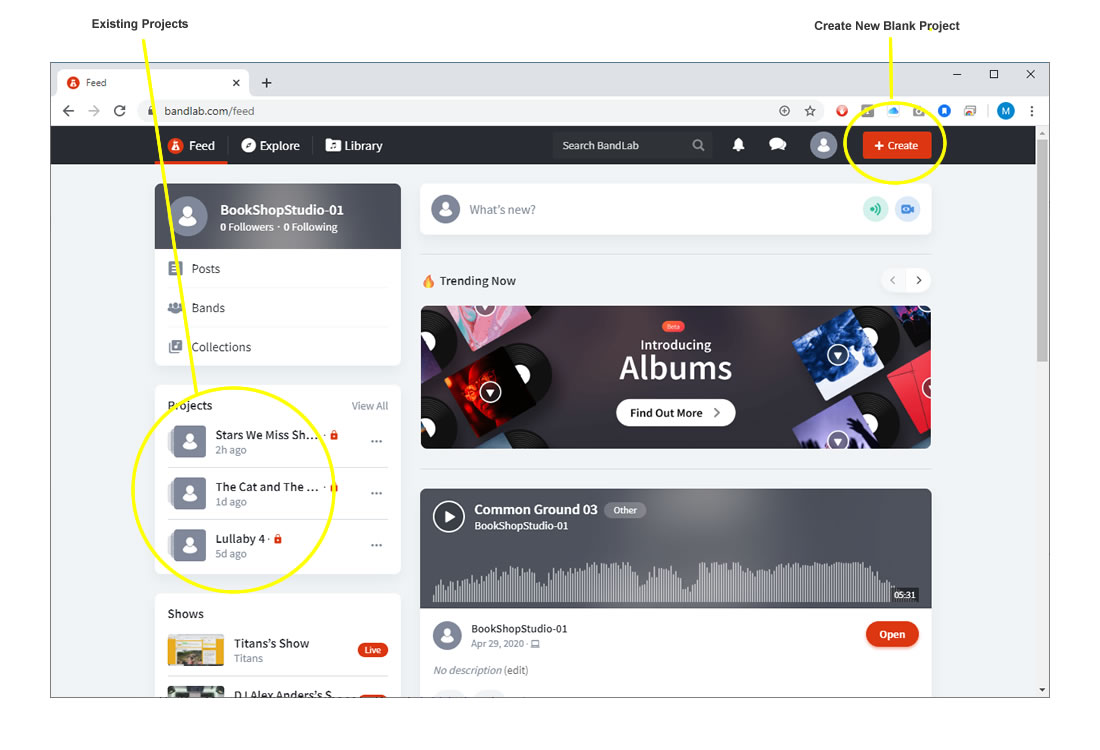
Existing projects are listed on the left hand column. Click on one to open it.
A new blank Project can be created by clicking on the +Create button.
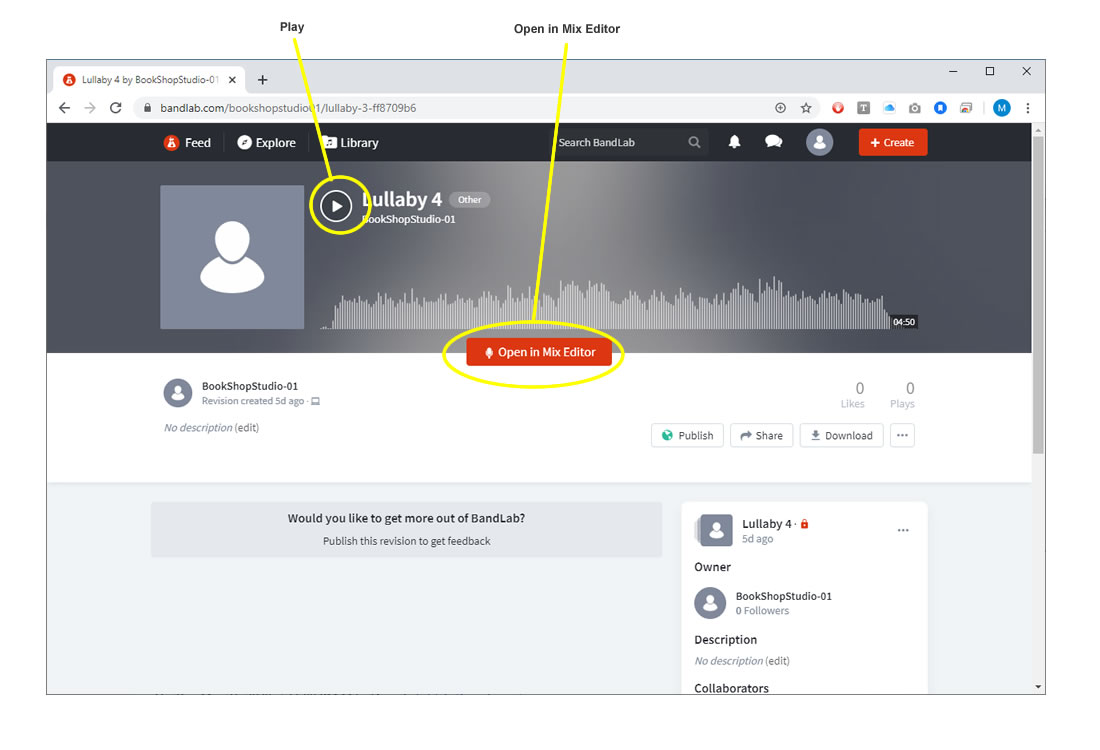
Once a Project is opened the screen below appears. To just play what is already in the Project click on the Play button. Alternatively click on the Open in Mix Editor button. This will allow both playing the Project and the option of adding new tracks to the Project.
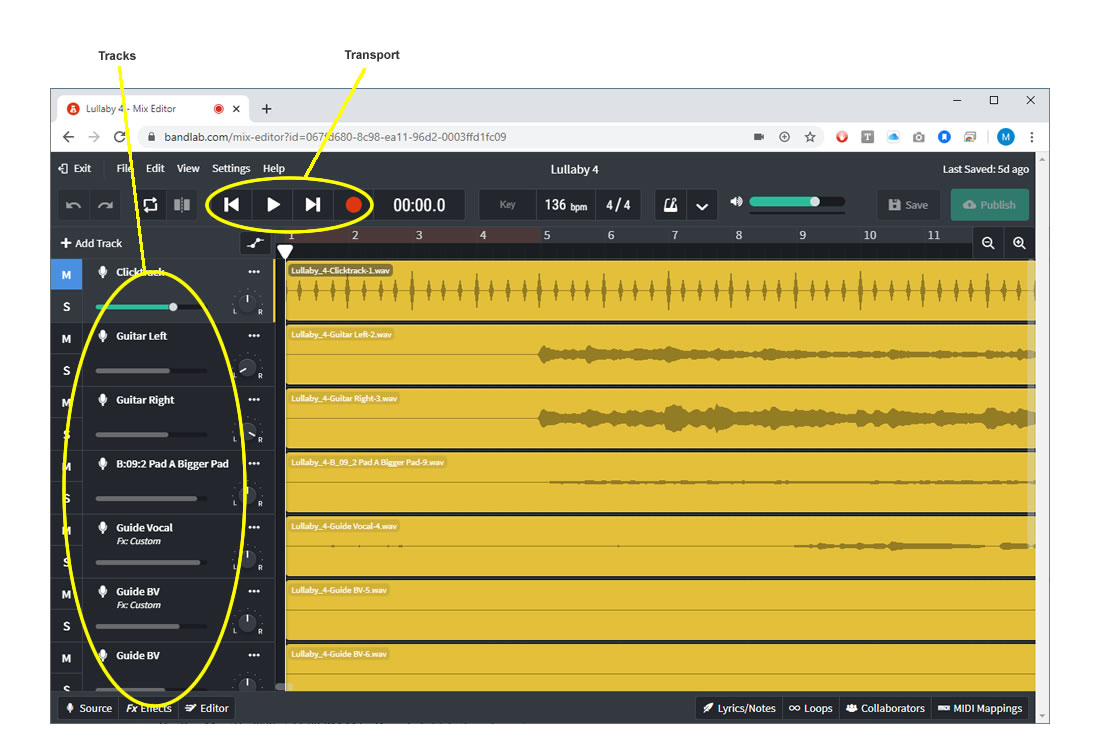
The Mix Editor window is below. The individual tracks are on the left hand side (each has its own volume control for setting a balance). The transport panel contains Rewind, Play, Fast Forward and the red Record buttons.
Adding a new track
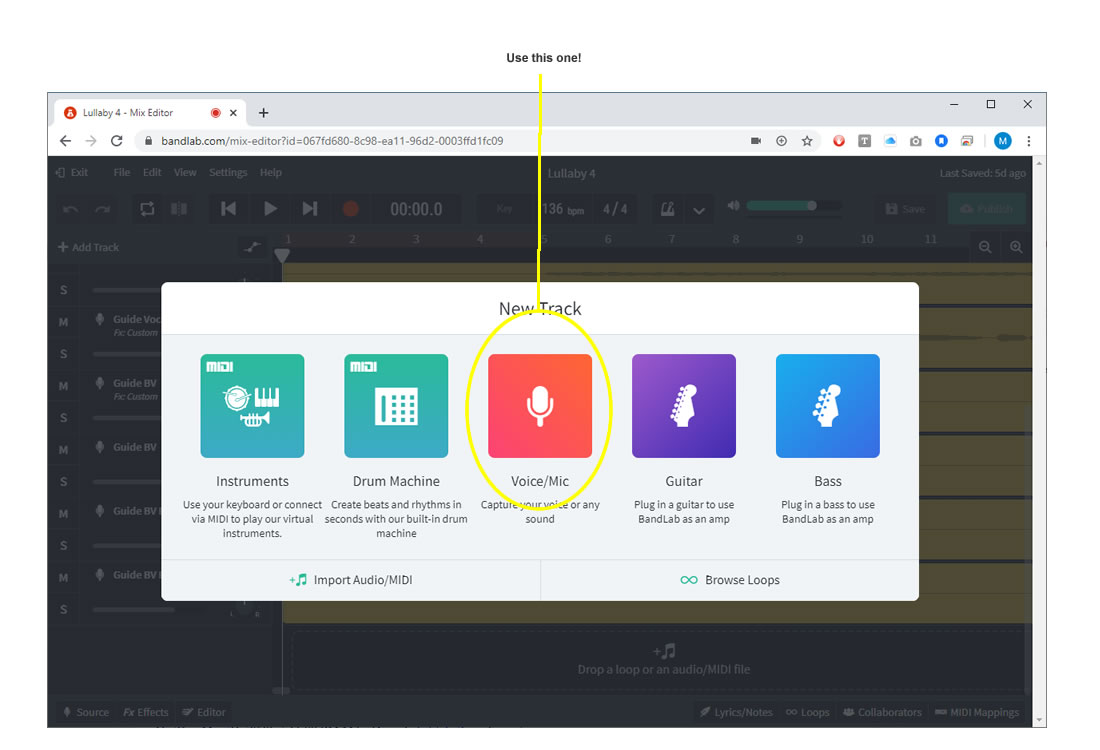
To add your own track click on the +Add Track button at the top of the tracks on the left hand side. This will pop up the screen below. As you will be adding just the output from either a microphone or an instrument click on the large red Voice/Mic button in the middle. This will then take you back to the Mix Editor with a new track in place and highlighted. (Ensure that your interface is on and mic/instrument is plugged into it.) It is now ready to record - make sure the new track is highlighted then just hit the red record button in the Transport and you're off.
Once recorded rewind to the beginning and listen back to the combination of your new track together with the guide track(s). Once happy with the new track click on the Save button and (important) the Exit link on the left of the menu. That saves it to cloud storage (we can then download this and drop it into the master DAW for mixing of a new guide track (containing your new track) and for final mixing once all tracks have been added.
The system is very intuitive to use. May be worth setting up a couple of blank projects to try out.